Tuesday, November 29, 2016

2 Guides to Transfer Musics from iTunes Playlist to Android Phone

If you have been using iPhone, iPad or iPod Touch for a very long times, you must have saved a large number of musics on your iDevice. Music management tool like iTunes enables music fans to backup all musics with their iPhone 7, iPhone 7 Plus, iPad or iPod Touch. When you are tired of using iDevice and willing to switch to Samsung Galaxy S7, LG or Huawei, what can you do with your favorite songs in iTunes ? Never fear, this post supplies 2 guides to transfer music from iTunes to android.

Method 1: Transfer Musics from iTunes to Samsung, Huawei, LG, HTC Using Phone Data Transfer   
If you have a large amount of musics to transfer from iTunes to Samsung Galaxy S7/S7 Edge, Huawei P9, HTC One M8, Sony Xperia Z3, Lg G5...you'd better use this tool. This program enables to transfer musics, contacts, photos, videos, notes and more data from iTunes to android phone or iPhone. 


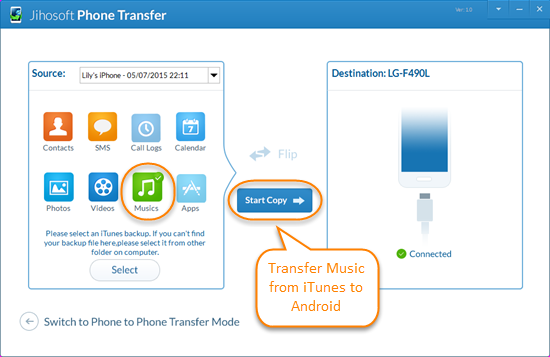
1. Download and launch Jihosoft Phone Transfer from its official site, select "Restore Data from iTunes Backup". 
2. Connect your android to computer using USB cable, this program will automatically detect this device. 
3. Tap on an iTunes backup file from the Source part, select "Musics" from the data types and click "Start Copy" to start transferring musics from iTunes to android. 


Method 2: Manual Way – Drag & Drop
The Manual move is a straightforward way if you just want a few choice tracks. You can transfer music from iTunes to Android with a USB cable and do it the old fashion way by clicking and dragging.

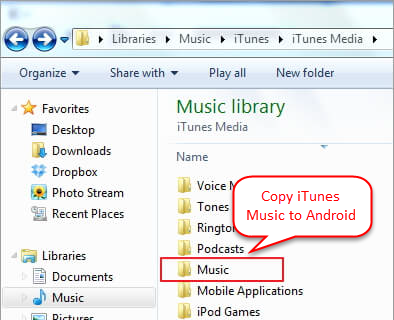
1. Find the location of your iTunes media folder:
Windows XP – C:\Documents and Settings\(username)\My Documents\My Music\iTunes
Windows 8, 7, Vista – C:\(username)\My Music\iTunes
Mac OS X – /user/username/Music/iTunes
2. Connect your Android phone as an external hard drive via USB cable.
3. Open the iTunes media folder to copy and paste iTunes music to your Android device music folder.

More Tutorials on: 
How to Transfer Music from iPhone, iPad or iPod to iTunes
How to Transfer/Sync iTunes Music to Google Nexus 6P/5X

Thursday, November 3, 2016

How to Transfer Contacts from iPhone to Android Phone

Congrats that you have switched from iPhone to android phone, maybe the the newest Samsung Galaxy S7, Note 7, HTC 10, LG G5... You must be excited to get a new phone. What you need to do now is to transfer all the contacts from iPhone to android for more convenience.

This tool is developed by Jihosoft Studio to transfer data between 2 different carriers, including contacts, photos, videos, musics, messages, notes, etc. You can download this program from the download icon below.

                        
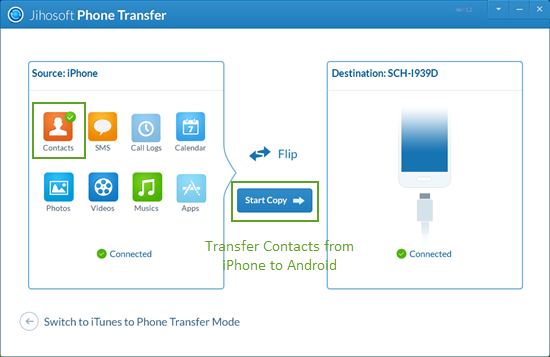
  1. Launch this software on computer and click "Phone to Phone".
  2. Connect iPhone and android to PC, after connection, make sure that the Source phone is iPhone and the Destination phone is android. 
  3. Now you can select "Contacts" from the file types and click "Start Copy" to transfer contacts from iPhone to android phone. 

  • Transfer iPhone Contacts to Android via Share Option
Tip: This Method is only appropriate to transfer a small number of contacts. 
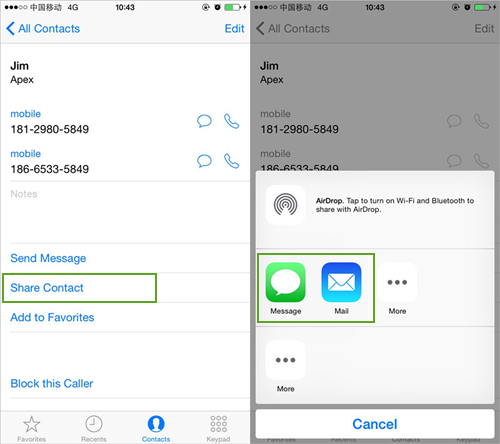
  1. Open up Contact app on your iPhone. Select one of contacts from the contact list. 
  2. Click on "Share Contact" and you'll have 2 options: via email or messages.
  3. You can select to share via the 2 choices as what you want. 

More Tutorials on: 
How to Transfer Music from iPhone to Android Phone
Switching from iPhone to Galaxy: Transfer Data from iPhone to Galaxy Phone

Tuesday, October 11, 2016

2 Ways to Transfer Photos from iPhone 5/5C/5S to iPhone/iPad Pro/iPad Air 2

The release of iPhone 7 has caught many Apple fun's attention. They can't wait to upgrading to new iPhone 6/6s/SE or  the latest iPhone 7. Yeah, it sounds exciting. However, after getting a new iPhone 7/7 Plus, what can you do with the data on old iPhone 5/5C/5S, especially photos, after all these photos have recorded precious memories of happy hours with your families, friends or partners. Thus it is necessary to transfer photos from iPhone to iPhone. The most direct way is to move via email, and there is no doubt that it's a huge amount of work if you have more than one thousand photos on your old iPhone. Considering that many iPhone users may meet this problem, we write this post to offer 2 quick ways to transfer pictures from iPhone to iPhone or transfer photos from iPhone to iPad.

Tutorial 1: Transfer Photos from iPhone to iPhone with iTunes. 

Apple has developed iTunes to help iOS users resolve any problems that they may meet with their iPhone/iPad/iPod.

What you'll need: 2 iOS devices (iPhone/iPad/iPod Touch), USB cable, iTunes installed on computer

  1. Plug in your old iPhone into a USB port on computer, you might also see a prompt on the iOS device asking you to Trust This Computer. Tap Trust to continue. 
  2. After successful detection, click Photo App from your iPhone folder and drag photos to an empty folder on computer, you can name in "IMAGE".
  3. Now launch the latest version of iTunes and connect new iPhone/iPad to PC.Wait your iPhone/iPad to be detected by iTunes. 
  4. After detection, click your iPhone/iPad icon and tap on "IMAGE" from the sidebar. 
  5. select copy photos from the folder on computer called "PHOTOS" lastly, click sync to start transferring photos from old iPhone to your new iPhone/iPad.

Tutorial 2: Transfer Pictures from iPhone to iPhone Using Phone Data Transfer 

Some iPhone users complain that the way above is too complicated and takes much time. In view of this problem, Jihosoft studio has developed a phone data transfer tool, which enables you to transfer different types of data between 2 devices. 

What you'll need: 2 iOS devices (iPhone/iPad/iPod Touch), USB cable, Phone Data Transfer 
  1. Get this software from official site of Jihosoft. Launch it on your computer and click on "Phone to Phone". 
  2. Connect both of your iPhone or iPad to PC. After detection, all data of old iPhone will be displayed as below.
  3. Select "Photos" from the data types and click "Start Copy" to begin the transferring process. 


More ideas on: 

How to Transfer Music from iPhone to iPhone (6S & 6S Plus Included)
How to Transfer SMS/iMessages from iPhone to iPhone